What survives when you convert DOCX to PDF in your browser?
Browser-based converters promise to turn a Word file into a PDF without uploading it. How close do they get to what you see in Word? We tested the DOCX to PDF tool on ReshapePDF with two files and compared the results with LibreOffice, a desktop office suite, as a reference.
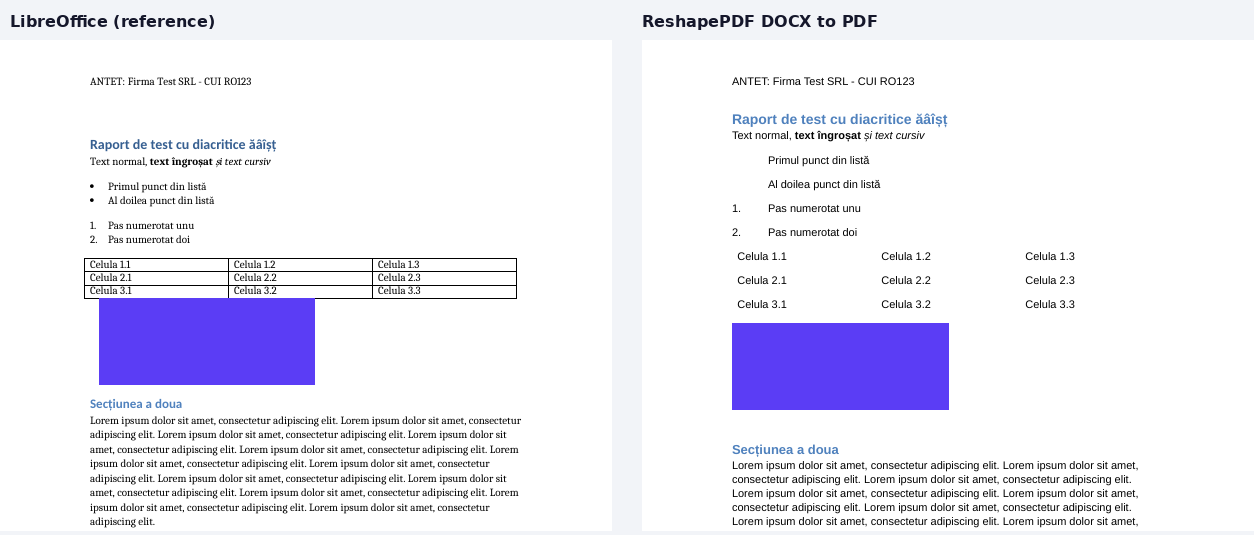
The first file is a one-page Romanian administrative letter with a centred heading, justified paragraphs and diacritics. The second is a report-style document made for this test: a coloured heading, bold and italic text, bulleted and numbered lists, a three-by-three table, a picture, a header and a footer.
What we found
| Feature | Result in ReshapePDF |
|---|---|
| Romanian letters ă, â, î, ș, ț | Kept, in both files |
| Centred heading, justified text, spacing | Kept (letter) |
| Bold, italic and coloured heading | Kept (report) |
| Header and footer | Kept (report) |
| Picture | Kept (report) |
| Numbered list | Kept (report) |
| Bullet symbols | Missing: the indent stays, the dot does not (report) |
| Table borders | Missing: the text of every cell is there, the grid lines are not (report) |
| Fonts | Replaced with Liberation Sans. LibreOffice used Caladea and Carlito, look-alikes of Cambria and Calibri |
Why diacritics need an embedded font
While building the tool we hit a problem worth knowing about. An earlier version of our converter drew text with the standard PDF fonts, which do not contain ă, ș or ț: a line that should read “Către Primăria” came out as “Ctre Primria”. A converter has to embed a font that contains these letters. The current engine does: Liberation Sans is embedded in the PDF it produces.
When a browser conversion is enough
For letters, CVs and simple reports, the result keeps the content and the look of the page. For contracts or forms where table lines matter, for brand fonts or for exact pagination, use Save as PDF in Word itself, or a desktop suite.
How to check your PDF before you send it
- Compare the page count with the Word file.
- Search the PDF (Ctrl+F) for a word with diacritics. If it is found, the text and the font are fine.
- Look at tables and lists: grid lines and bullets are the usual casualties.
- Check headers, footers and images on every page.
Limits of this test
Two files are not a benchmark. Other documents can behave differently, especially ones with text boxes, columns, tracked changes or unusual fonts. Older .doc files are not supported: save them as .docx first.